
Make an Offer
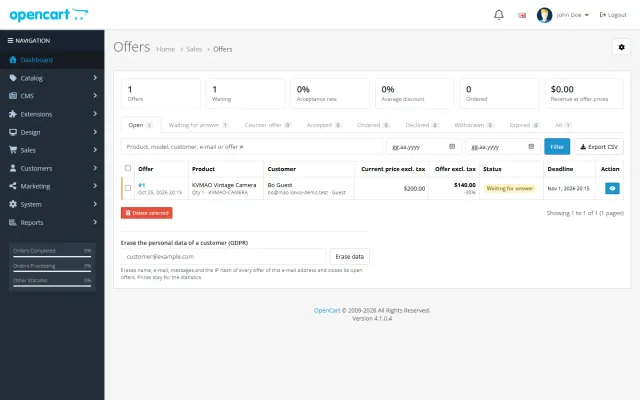
Shoppers propose a price; you accept, counter or decline, and the agreed price is applied once in the cart.
Platforms
 CS-CartAdd-ons and themes for CS-Cart and Multi-Vendor
 OpenCartExtensions and themes for OpenCart 4 and 3
 WooCommercePlugins and themes for WooCommerce
 PrestaShopModules and themes for PrestaShop 8.2 and 9
 ShopifyBuilt for every Shopify plan, billed by Shopify
Stores
OpenCart guide · Sell by Weight & Length
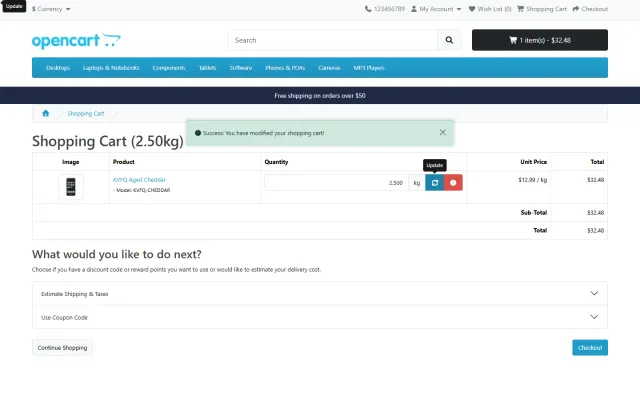
Shoppers enter 1.25 kg or 2.5 m, pick a preset and see the line total while they type. The cart, checkout, order, invoice and stock all use the exact quantity, on OpenCart 4 and OpenCart 3.
The problem
OpenCart stores quantities as whole numbers everywhere: in the cart, in orders and in stock. Type 0.5 in the quantity box and it becomes 1, or the product is refused.
Stores that sell cheese, fabric, flooring or paint therefore sell packs, or round up and fix the difference by hand.
Sell by Weight & Length for OpenCart
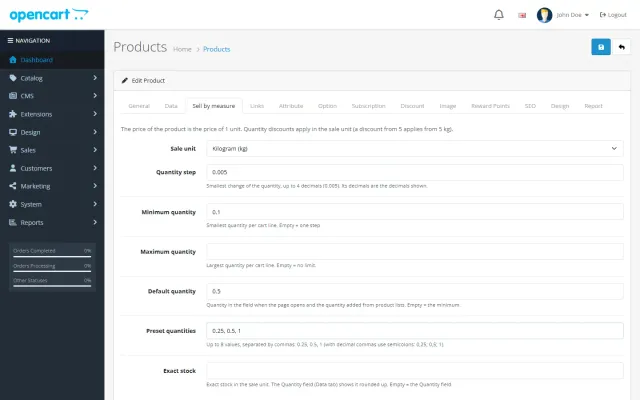
In Catalog > Products > Edit, tab Sell by measure: one of 15 units (kg, g, lb, oz, m, cm, ft, yd, in, m², ft², L, ml, gal, fl oz). The product price becomes the price of one unit.
Quantity step up to 4 decimals, minimum, maximum, default quantity and up to 8 preset buttons per product.
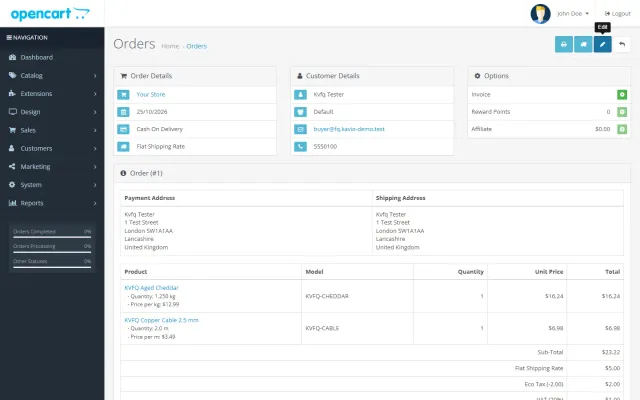
Line totals are exact (1.250 kg × $12.99 = $16.24, rounded once); orders take the exact stock and canceled orders give it back.
Weight, length, area and volume, with the unit shown after prices ("/ kg").
The total updates while the shopper types; arrow keys move by the step.
Kept next to the core Quantity field, which shows it rounded up so the product stays in stock.
Quantity discounts in the sale unit; taxes, coupons and gateways work unchanged.
Product weight is the weight of one unit; the line weight is weight × quantity.
No core file changes and no OCMOD patches; one licence for OpenCart 4 and 3.
Sell by Weight & Length for OpenCart
OpenCart stores whole quantities only. For cheese, fabric, cable or flooring, that leaves two workarounds: a "100 g" product bought 13 times, or an option list of fixed sizes. Neither gives you real stock or a readable order.
Sell by Weight & Length adds a decimal quantity field with the unit next to it. The customer buys 1.25 kg, the price is calculated to the cent, and the stock falls by exactly that amount. Built on OpenCart events, with no core changes, no OCMOD and no theme edits.
There are 15 sale units: kg, g, lb, oz, m, cm, ft, yd, in, m², ft², L, ml, gal and fl oz.
On product lists, Add to Cart adds the default quantity, or the minimum when none is set.
After installing, turn on the module, which starts disabled. Then open a product, choose the Sell by measure tab, and save.
| Field | Example | Meaning |
|---|---|---|
| Sale unit | Kilogram | The product price becomes the price of 1 unit. |
| Quantity step | 0.005 | Up to 4 decimals. It also sets the decimals shown. |
| Minimum / maximum | 0.1 / 5 | Per cart line. |
| Default quantity | 0.5 | Pre-filled, and added from lists. |
| Preset quantities | 0.25, 0.5, 1 | Up to 8 buttons. |
| Exact stock | 8.750 | Empty uses the Quantity field. |
The core Quantity field holds whole numbers, so it shows the exact stock rounded up: 8.750 kg shows as 9, and the product stays in stock while anything is left. Orders take the exact amount, and canceled orders give it back. If you, an import or another extension sets Quantity to another whole number, that becomes the exact stock.
Quantity discounts work in the sale unit, and the price is chosen by the whole units of the quantity, so 5.5 kg uses the "5 or more" price. Set Weight to the weight of one unit, and shipping follows the quantity.
| Fixed-size options | Decimal quantities | |
|---|---|---|
| Any amount | No | Yes, to your step |
| Stock in real units | Per option value | Yes |
| Readable order | Option text | Quantity and unit price |
| Setup | Option list per product | One tab per product |
Fixed options are enough if you only ever sell 250 g and 500 g bags.
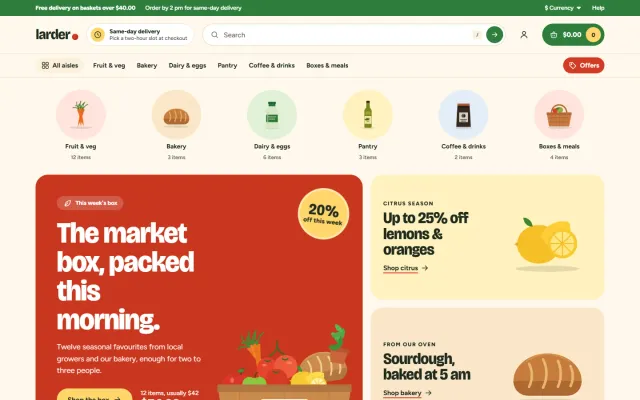
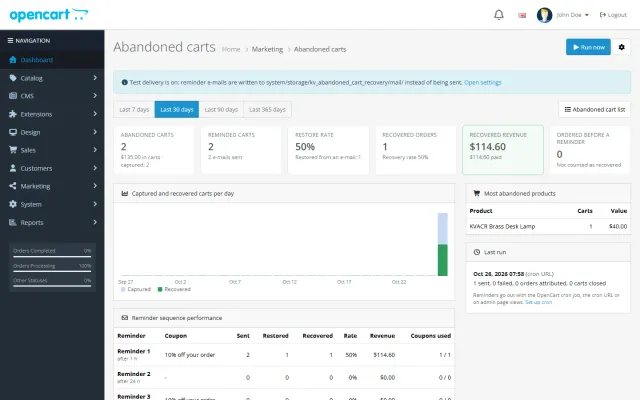
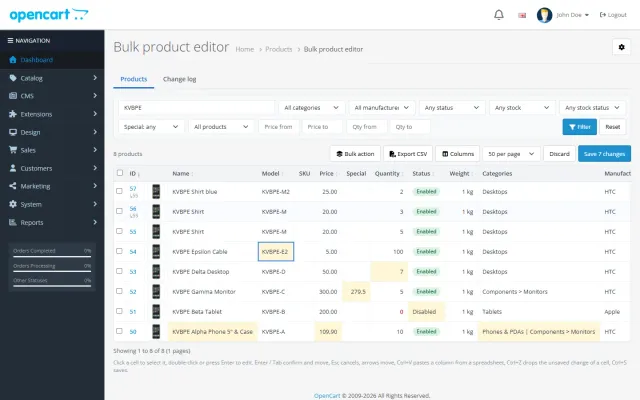
The Pantry theme is built for food stores and sold with this extension and the Bulk Product Editor in the Food Store Kit on the packages page. Abandoned Cart Recovery keeps and restores measured quantities exactly. Our guide compares selling by weight across platforms. Get Sell by Weight & Length on the store.
Good starting steps: 0.05 kg for deli, 50 g for coffee, 0.1 m for fabric. Match the step to how you actually weigh and cut, since a step finer than your scales promises what you cannot deliver.
OpenCart 4.0.2.0 to 4.1.0.4, and 3.0.x with a separate package, both in one licence. Tested on 4.1.0.4 and 3.0.5.1. You have 14 days to enter the licence key after installing.
| Product | Unit | Step | Presets |
|---|---|---|---|
| Cheese or deli | kg | 0.05 | 0.25, 0.5, 1 |
| Coffee | g | 50 | 250, 500, 1000 |
| Fabric | m | 0.1 | 1, 2, 5 |
| Rope or cable | m | 0.5 | 5, 10, 25 |
| Flooring | m² | 0.01 | 5, 10, 20 |
Run a real order before launch. Add a measured product, change the quantity in the cart, pay with your gateway, and check the order, invoice and stock. Then cancel it, and confirm that stock returns. If you use an import tool, remember that a changed Quantity overwrites the exact stock, so feed whole numbers only where they are true.
OpenCart
Sell products by weight, length, area or volume with decimal quantities, unit prices, step/min/max and a live price on the product page (OpenCart 4.x and 3.0.x).
OpenCart
The most requested products on this platform. Each one has its own page, and you can buy it straight on the sales site.
Shoppers propose a price; you accept, counter or decline, and the agreed price is applied once in the cart.
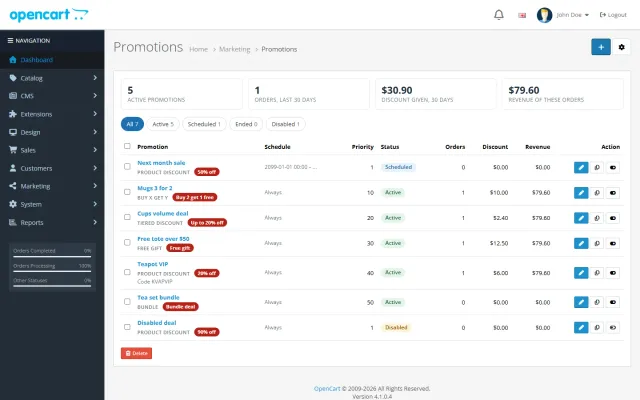
Buy X get Y, tiers, bundles, free gifts and scheduled campaigns with badges and cart nudges.
A grocery theme with aisle bubbles, stepper cards with unit prices, recipe add-all and a phone basket bar.
Up to three reminders, single-use coupons, a restore link and a recovered-revenue dashboard.
A spreadsheet grid for prices, specials, stock and options, with bulk actions, preview and undo.
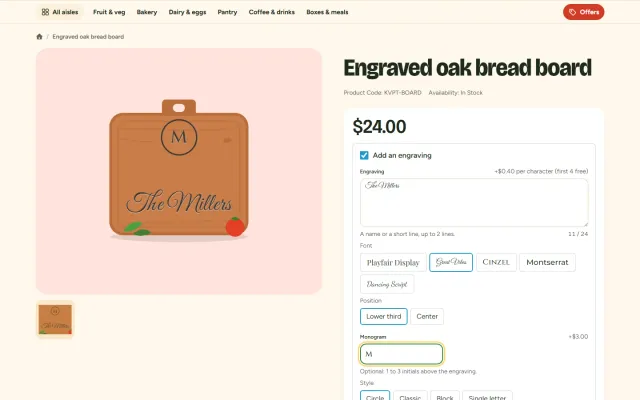
Names, dates and monograms previewed on the product photo, with fees, a word filter and a production sheet.
Prices, licences, full documentation and instant downloads are on the store.
opencart.kaviolabs.com · 96 extensions · 16 themes
Sell by weight
Built natively for each platform, not ported. Each version has its own product page, documentation and price.
CS-Cart
Decimal quantities with a unit, step, presets and price per kg or metre, with exact stock down to 0.001.
WooCommerce
Decimal quantities like 1.25 kg, quick amounts, length × width and exact decimal stock, with the block checkout.
PrestaShop
Amounts like 1.25 kg or 2.40 m with quick amounts, a live total, exact decimal stock and real shipping weight.
Shopify
An amount input with a live price, Shopify unit prices and a checkout check for minimum and maximum amounts.
Guide
Guide
How five platforms handle 1.25 kg or 2.5 m, the usual workarounds and what to check before you choose.
Read the guideFAQ
OpenCart stores whole quantities only. A measured product is one order line with the exact line total; "Quantity: 1.250 kg" and "Price per kg: $12.99" under the product name keep the measure.
Yes. They receive quantity 1 with the line total as its price, so the sum of the lines always equals the order total.
No. It uses OpenCart events and the standard quantity field of the product page, and works with the default themes of OpenCart 4 and 3 and themes that keep that field.
No. It runs in the admin panel once a day; the storefront never contacts the licence server.
The extension keeps exact stock next to the core Quantity field, which shows it rounded up. Orders take the exact amount, and canceled orders give it back.
Yes, in the sale unit. A discount from 5 applies from 5 kg.
Yes. Taxes, coupons, reward points and totals work as usual.
No. Products bought with a subscription plan are sold in whole units.
See every screen and read the full documentation on the product page.
Kavio Labs
The same standards, the same support desk and one licence portal on every platform we build for.